Open source · EUPL-1.2
Your tabs,
magnetized.
Magnetite is an open-source browser that keeps your tabs in a sidebar, sorts them into spaces and archives what you stop using. Chromium inside, Rust around it. No account, no telemetry.
Fe₃O₄ Runs on macOS with Apple silicon, built from source Linux and Windows in preparation
- Sidebar tabs
- Spaces
- Command bar
- Auto-archive
- Split view
- Peek
- Chrome extensions
- Picture-in-picture
- Smart folders
- Private profiles
- Clean links
- Encrypted sync
A tour of Magnetite
-
02 / 06 Spaces
One sidebar, many spaces.
Each space has its own icon, colour and profile, so work logins and private ones never meet. The window takes a tint of the space you are in.
- Switch spaces with ⌘⌥← → or a two-finger swipe on the sidebar.
- Every space keeps its own pinned tabs and its own Today.
- Hide the sidebar with ⌘S; at the left edge it slides out over the page.
-
03 / 06 Command bar
One bar for everything.
⌘T opens the command bar over the page. Type an address, a search, the name of an open tab, something you archived last week, or a command.
- Open tabs, the archive and commands in one list.
- Picking an open tab switches to it, even in another space, instead of opening a duplicate.
- Searches go to the engine you choose.
-
04 / 06 Split view
Side by side.
Put up to four pages next to each other, each with its own navigation. In the sidebar they become one item.
- ⌘⇧= opens a new split.
- Or drag one tab onto another.
- Each page keeps its own history and extensions.
-
05 / 06 Peek
Look without leaving.
Shift-click a link, or follow one away from a pinned site, and it opens as a Peek over the page you were on.
- ⌘O keeps it as a tab.
- One click moves it into a split.
- Esc, and it is gone.
-
06 / 06 Archive
Nothing gets lost.
Closing a tab archives it instead of throwing it away. Tabs you have not looked at for 12 hours move to the archive on their own.
- The archive stays searchable, in the sidebar and from the command bar.
- ⌘⇧T brings back the last tab.
- Kept on your device, for 90 days by default.
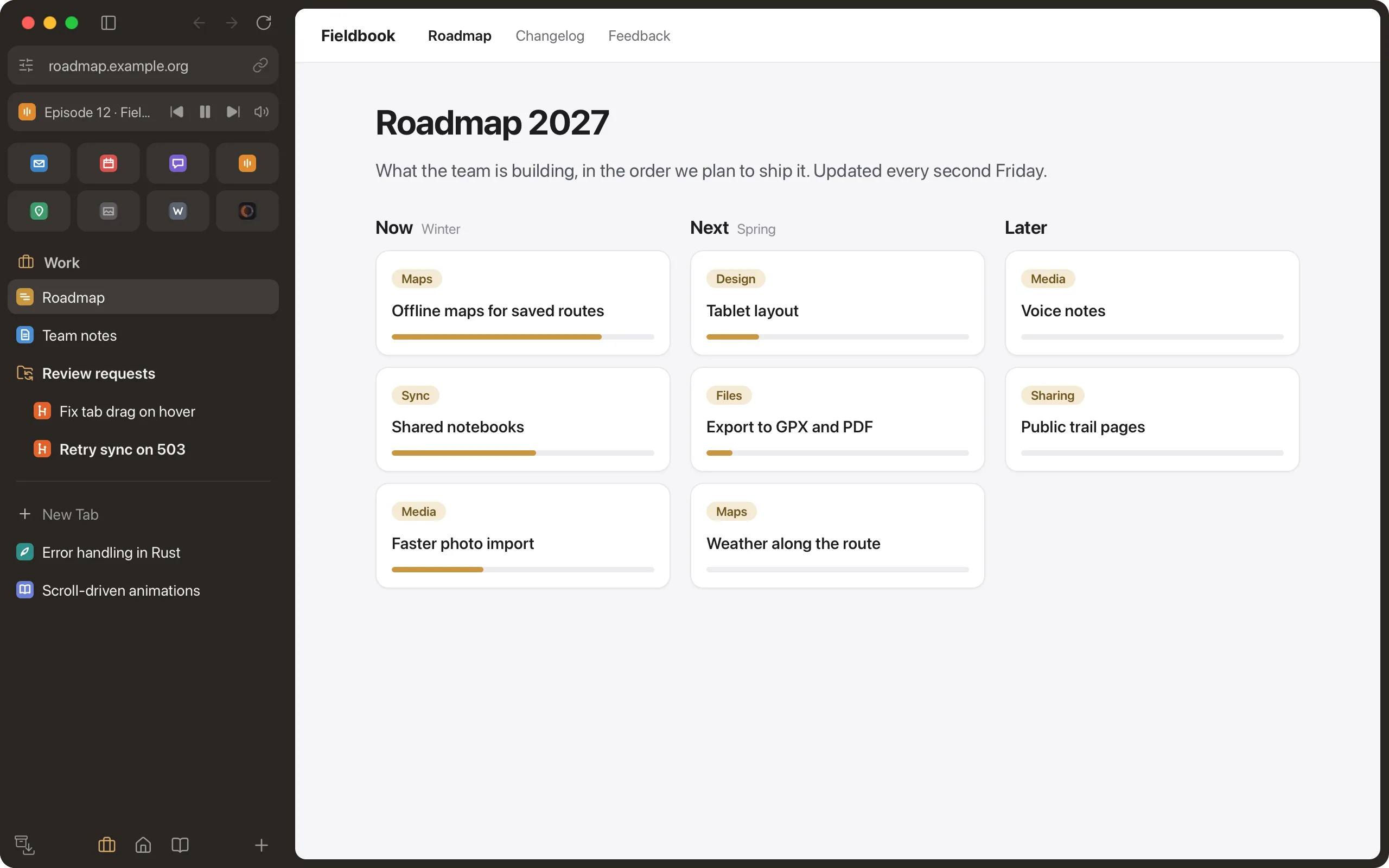
Not a recording: the sidebar and the command bar in this window are Magnetite’s own code, running on sample tabs. Try the live demo
Moving from another browser?
Settings → Data → Import from another browser lists the browsers on your computer, and one click adds their spaces and tabs next to yours.
- Arc
- Chrome
- Brave
- Edge
- Vivaldi
- Opera
- Chromium
- Firefox
- Zen
Comes along
- Arc’s spaces and Zen’s workspaces; one space per profile from the others
- Pinned tabs and the tabs you have open
- Tab groups and bookmarks, as folders
- Arc’s favorites and Zen’s essentials
- Each further profile as its own Magnetite profile
Stays behind
- Passwords: they stay in your password manager
- Cookies, logins and history
- Extensions: install them again from the Chrome Web Store
Everything is read on your computer and nothing is uploaded. Magnetite is an independent project, not affiliated with The Browser Company.
Why Magnetite
-
Tabs that tidy themselves
Closing a tab archives it instead of throwing it away. Tabs you have not looked at for 12 hours move to the archive on their own, and the archive stays searchable.
-
Chromium underneath
Sites work as they do in Chrome. Extensions install from the Chrome Web Store, password managers included, and Chromium’s sandbox and site isolation stay on.
-
Nobody watching
No telemetry, no account. Sync is optional, end-to-end encrypted, through Magnetite’s free server or one you can host yourself.
Hands stay on the keys.
- ⌘T CtrlT New tab or search
- ⌘L CtrlL Edit the address
- ⌘W CtrlW Archive the tab
- ⌘⇧T CtrlShiftT Reopen the last one
- ⌘D CtrlD Pin or unpin
- ⌘S CtrlS Hide the sidebar
- ⌘⌥←→ CtrlAlt←→ Switch space
- ⌘⇧= CtrlShift= New split
- ⌘⇧C CtrlShiftC Copy a clean link
- ⌘⇧2 CtrlShift2 Take a screenshot
And the rest
Small things, done properly.
-
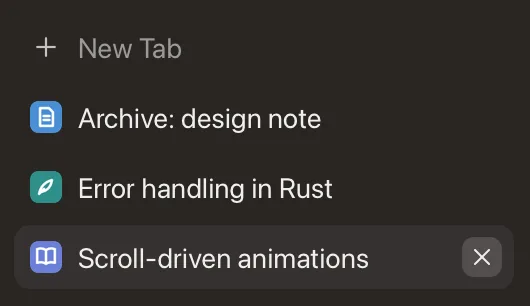
Archive instead of close
Closed tabs go to a local, searchable archive, kept for 90 days by default. ⌘⇧T brings back the last one.
-
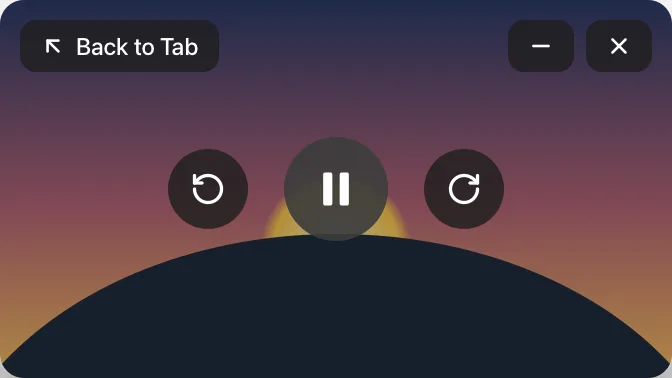
Picture-in-picture
Leave a tab with a playing video and it floats, with its own controls: play and pause, 15 seconds back or forward, back to the tab.
-
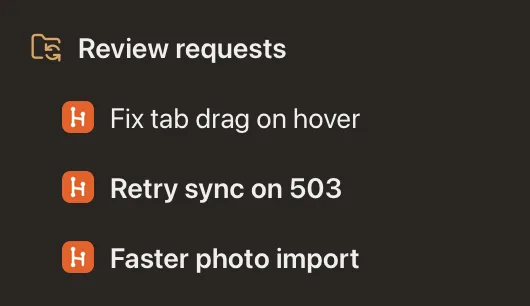
Smart folders
Folders that fill themselves with your pull requests, merge requests or tickets from GitHub, GitLab, Jira or YouTrack, self-hosted servers included.
-
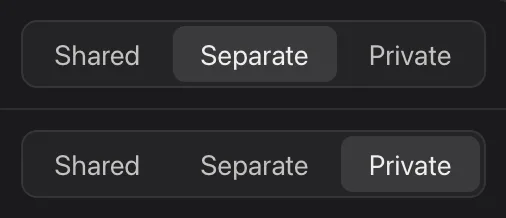
Profiles per space
Shared, separate or private logins for each space and favorite. Private profiles live in memory and leave nothing on disk.
-
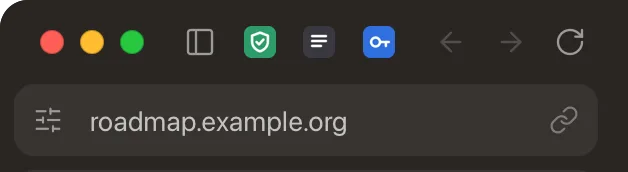
Chrome extensions
Install from the Chrome Web Store, pin icons to the sidebar, reach every extension from the Extensions menu. Password managers such as Bitwarden work.
-
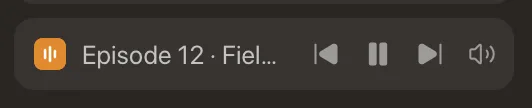
Media controls
Music or video in a tab you are not looking at gets a row in the sidebar: play, pause, skip, mute, or jump to the tab.
-
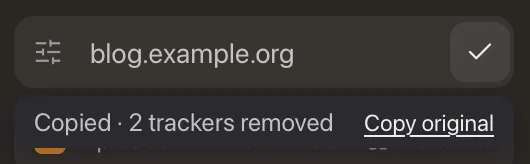
Clean links
Copy a page’s link without tracking parameters (⌘⇧C), exactly as it is, or as Markdown.
-
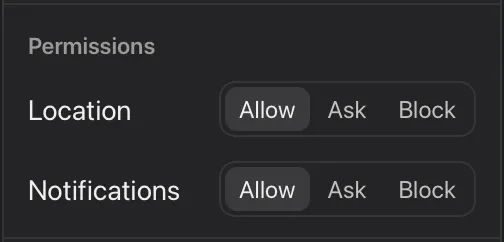
Site controls
Zoom, permissions and clearing a site’s stored data, in the site panel (⌘⇧O).
-
Capture
Take a screenshot of the page with ⌘⇧2, without a separate app: an element, a region, what is visible, or the whole page.
-

Import from other browsers
Spaces, pinned tabs, tab groups, bookmarks and open tabs from Arc, Chrome and other Chromium-based browsers, Firefox or Zen, read on your computer.
Privacy
Your browsing stays yours.
Magnetite is built EU-first, with the GDPR in mind. There is no Magnetite server your browser reports to.
- telemetry
- 0
- accounts needed
- 0
- words to join a device
- 24
- No telemetry and no usage statistics.
- No account. Everything works without signing in.
- Archive, history and favicons stay on your device, in a folder only your user can read.
- Private profiles keep nothing on disk.
- Smart-folder tokens go only to the service they belong to, and are never synced or logged.
- Magnetite checks GitHub Releases for signed updates at start and once a day. You can turn that off in Settings → About.
Sync, if you want it
Use Magnetite’s free sync server in Germany, or run
magnetite-sync, one small
program and a Postgres database, on your own server. Devices join with a 24-word sync code. No email, no
password.
Open source
Every line in the open.
All of Magnetite’s code is public: read it, build it yourself, change it. There is no account to lock features behind, and if we ever stop, anyone can carry it on. The EUPL-1.2 copyleft keeps it that way: whoever ships a changed version, or runs a changed sync server for others, publishes the changes too.
# needs Rust, Xcode tools, Node 22+ and CEF (see the README)git clone https://github.com/magnetite-browser/magnetitecd magnetite && scripts/bundle.sh --releaseCompiling magnetite-core, magnetite-engine, magnetite …✓ target/bundle/Magnetite.appopen target/bundle/Magnetite.app-
Rust and Chromium
The app is written in Rust and embeds Chromium through the Chromium Embedded Framework.
-
Clean room
No Arc code, assets or branding. Behaviour is specified in our own words.
-
No CLA
Contributions come in under the EUPL. You keep your copyright.
Download
Signed builds are coming soon.
There is no release yet. Downloads will appear here and on GitHub Releases, macOS first. Until then you can build Magnetite from source on a Mac with Apple silicon.
- macOS · Apple silicon Build from source
- macOS · Intel In preparation
- Linux · x86_64 In preparation
- Linux · ARM64 In preparation
- Windows · x86_64 In preparation
Is this Arc?
No. Magnetite is an independent open-source project and is not affiliated with, endorsed by or sponsored by The Browser Company. It works in a similar way (sidebar, spaces, command bar, archive) and imports your Arc sidebar, so you can move over before Arc shuts down on 22 December 2026. It contains no Arc code, assets or branding.
Which platforms?
Today Magnetite runs on macOS with Apple silicon, built from source. Builds for Intel Macs, Linux (x86_64 and ARM64) and Windows (x86_64) are in preparation and not released yet.
Is it free?
Yes. Magnetite is free to use and open source under the European Union Public Licence (EUPL-1.2). You do not need an account.
How does sync work?
Sync is optional. Use Magnetite’s free sync server (hosted in Germany, no sign-up) or run the small magnetite-sync server yourself (one program and a Postgres database, with Docker Compose or a Helm chart). Your first device creates a sync chain and shows a 24-word sync code; other devices join by entering it. Everything is encrypted on the device before upload, and the words never leave your devices, so the server only stores an anonymous key and padded ciphertext: no email, no password, no device names. Spaces, pinned tabs, favorites and settings sync; cookies and logins never do. If you lose every device and the 24 words, the synced data cannot be recovered, by design.
Will my extensions work?
Most should. Extensions install from the Chrome Web Store inside Magnetite and run on Chromium’s own extension system. Password managers such as Bitwarden work. Extension badges (the small counts on icons) are not shown yet.
Can I bring my tabs from another browser?
Yes: from Arc, Chromium-based browsers (Chrome, Brave, Edge, Vivaldi, Opera, Chromium), Firefox and Zen. Settings → Data → Import from another browser lists the ones on your computer. An import adds spaces next to the ones you have: pinned tabs, tab groups and bookmarks become folders, open tabs land in Today, Arc’s favorites and Zen’s essentials become favorites, and each further browser profile gets its own Magnetite profile. On first start, Magnetite also picks up your Arc sidebar by itself. The files are read on your computer and nothing is uploaded; the other browser is not changed. Passwords, cookies, history and extensions are not copied: passwords stay in your password manager, and extensions install again from the Chrome Web Store.
Is it ready for daily use?
Not for everyone yet. Things can break, including the format of the data on disk. Some sites that only serve H.264 video or AAC audio do not play yet. If you try it, keep your old browser around and tell us what breaks.
Follow the project, build it from source, tell us what breaks.